50-Inch L-Shaped Gaming Desk Setup: CPU Shelf & Side Bag
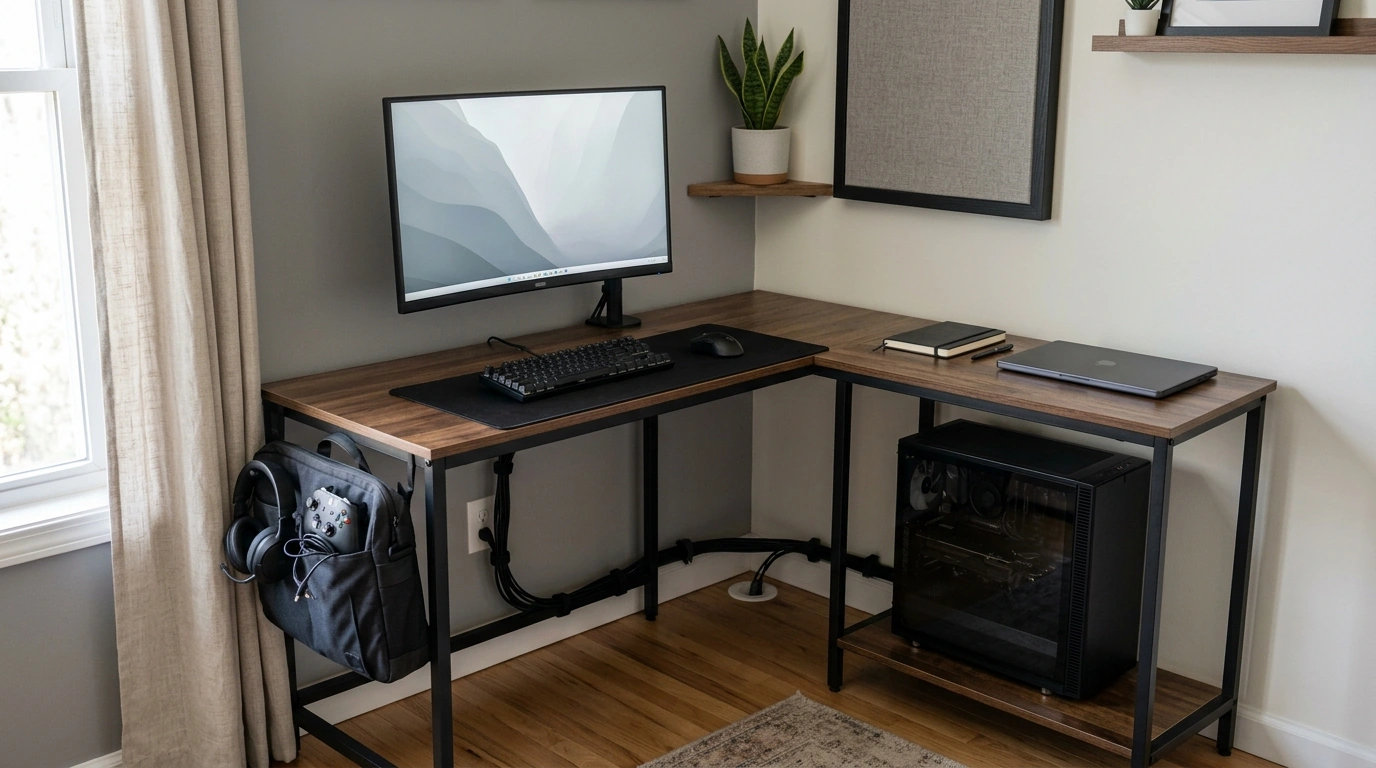
L-Shaped 50-Inch Gaming Desk with CPU Storage & Side Bag for Home Office
A home office desk has to do more than hold a monitor. It needs to organize cables and gear, keep the tower protected, and create a layout that supports long sessions—whether that’s gaming after hours or focused work during the day. Our team built this setup guide around one of our most practical options: the L-Shaped 50-Inch Gaming Desk with CPU Storage & Side Bag for Home Office. It’s designed for real-life rooms, with a corner-friendly footprint, a dedicated CPU space, and a side bag that helps keep your desktop clear.
What this desk adds to a small-to-mid home office setup
If your space is doing double duty (workstation by day, gaming station by night), an L-shape can feel like a layout upgrade without demanding a bigger room.
- L-shaped layout helps you use corner space efficiently and create distinct zones (game/work + writing/notes).
- 50-inch surface length supports common monitor-and-laptop or dual-screen arrangements without feeling cramped.
- CPU storage area keeps the tower off the floor to reduce dust exposure and accidental kicks.
- Side bag storage keeps quick-grab items (controller, headset, notebook, chargers) off the desktop.
- Straightforward footprint fits apartments, bedrooms, dorm rooms, and dedicated offices without “furniture Tetris.”
Corner layout planning: making the L-shape work for gaming and work
The biggest win with an L-shaped desk is that you can keep your primary screen and controls on one run, then dedicate the return to everything else—without stacking clutter around your mouse space.
- Pick the “primary” side for your main display and keyboard; use the return for paperwork, a laptop stand, or console docking.
- Place the desk so the corner seam isn’t directly behind where your monitor stand sits; a stable, centered monitor area feels better for long sessions.
- Use the inner corner as a cable hub zone for a power strip and charging station to keep wires out of sight.
- Leave elbow room on the primary side; a clear sweep area supports comfortable mouse movement for gaming and precise work.
- If you run two monitors, center the primary display and angle the second along the return to reduce neck rotation.
Quick setup map (simple and effective)
| Desk zone | Best use | Keep within reach |
|---|---|---|
| Primary 50-inch run | Main monitor + keyboard/mouse | Headset stand, phone charger, water bottle |
| Return (second side) | Laptop, notebook space, streaming gear | Dock, external drive, pens |
| Under/side CPU area | Tower placement | Surge protector, cable slack |
| Side bag | Small accessories | Controller, cables, adapters, handheld mic |
CPU storage and airflow: keep the tower safe without trapping heat
Getting your PC off the floor is great—until cables or tight placement restrict airflow. The goal is a protected tower position that still breathes.
- Leave breathing room around vents. Don’t press the case flush against panels or walls; give fans space to move air.
- Route cables to avoid the exhaust path. Keep cords from hanging across rear vents, and use gentle curves to reduce strain on ports.
- Keep it stable and out of foot traffic. A dedicated CPU zone reduces accidental bumps and “chair wheel vs. cable” accidents.
- Make the power strip reachable. Accessible doesn’t mean dangling; a stable, tucked path reduces trip hazards.
- Plan quick cleanups. A clear CPU zone makes it easier to vacuum nearby and manage dust around the workstation.
For ergonomic workstation basics that also support cleaner cable routing and safer layouts, we recommend reviewing guidance from OSHA’s Computer Workstations eTool and NIOSH ergonomic guidelines.
Side bag organization: a cleaner desktop in minutes
The side bag is one of those features you appreciate most on busy days. Instead of small items drifting into piles, you get a dedicated “home” for accessories.
- Use the bag as your daily-carry zone for charging cords, USB drives, stylus, and spare batteries.
- Separate by purpose: one pocket for gaming (controller, earbuds), one for work (calculator, dongles, notebook).
- Keep heavier items off the desktop to protect mouse space and reduce visual clutter during calls.
- Put tiny adapters in a labeled mini pouch inside the bag to avoid the search spiral.
- Use it as a reset button: at day’s end, sweep small items into the bag so you start fresh tomorrow.
Comfort fundamentals: desk height, screen placement, and chair pairing
For a straightforward overview of posture and workstation alignment, the Mayo Clinic’s office ergonomics guide is a helpful reference.
Optional add-ons our team pairs with this desk
- Wireless Bluetooth Backlit Number Pad for Apple Devices for quick data entry without committing to a larger full-time keyboard footprint.
- L-Shaped 50-Inch Gaming Desk with CPU Storage & Side Bag for Home Office as the core corner build that keeps the CPU protected and small items corralled.
Who this desk fits best
FAQ
Will a 50-inch L-shaped desk fit in a small room?
Measure the two wall lengths where the desk will sit, then confirm you’ll still have chair clearance and a comfortable walking path. Also check door swing and where the return side will extend so it doesn’t block a closet or main walkway.
How should the PC tower be placed in the CPU storage area?
Set the tower so its vents have open space for intake and exhaust, and avoid pushing it tight against panels or a wall. Leave enough cable slack for gentle bends (not sharp pulls) and keep the unit positioned away from where your feet and chair wheels travel.
What should go in the side bag versus on the desktop?
Use the side bag for small accessories and occasional-use items like spare cables, adapters, and extra controllers, and keep only your daily essentials on the desktop. This protects mouse space and makes your work surface easier to reset at the end of the day.










Leave a comment